
Scanning tickets at the door
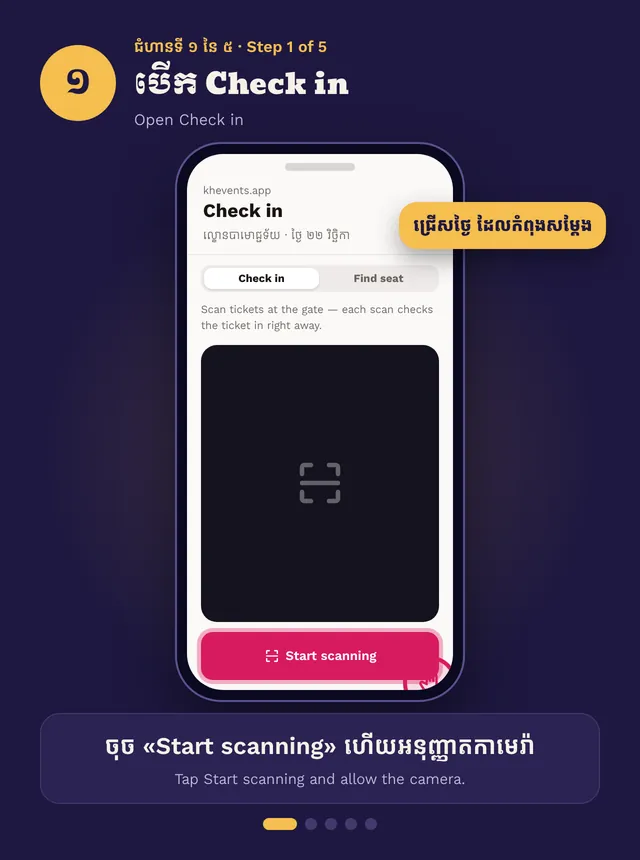
Open Check-in, pick the date, and tap Start scanning. Green means let them in. Amber or red means stop.
Quick steps
- Check-in → pick the event and today’s date
- Tap Start scanning and allow the camera
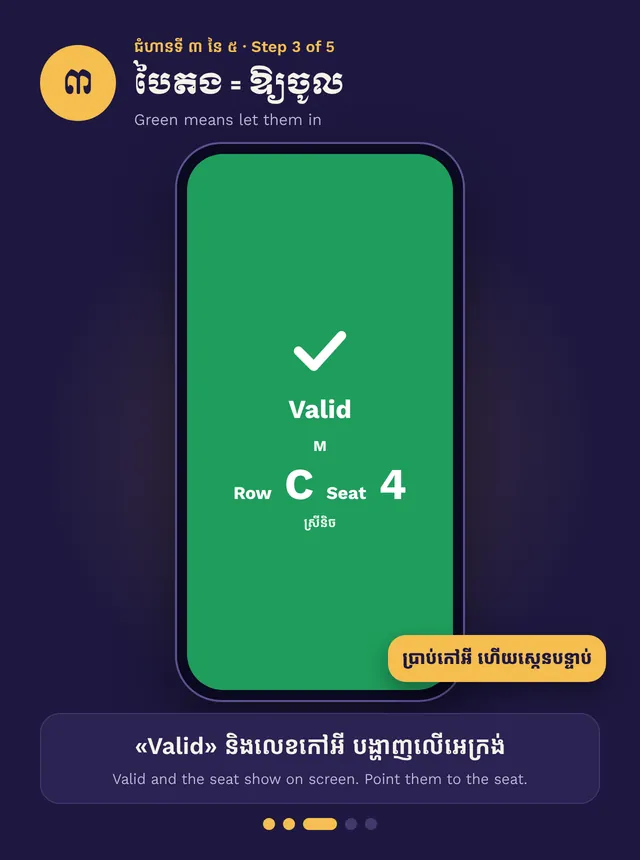
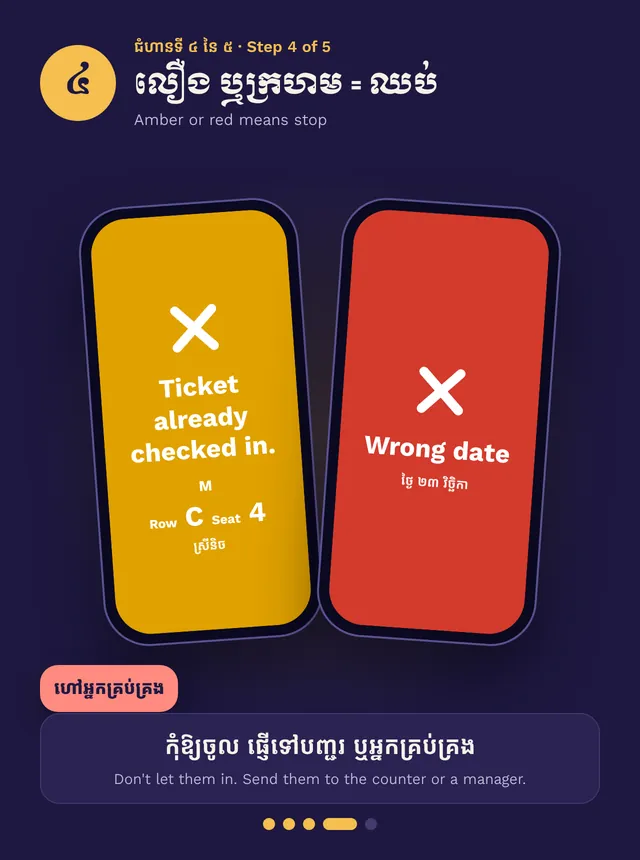
- Green: let them in. Amber or red: stop
- Won’t scan? Use Manual entry
Step by step, in pictures
Scan tickets at the door · Swipe for the next step. Tap a picture to open it big.
Everyone on the team can scan except Analysts. A Door scanner role is for staff who only scan.
Start
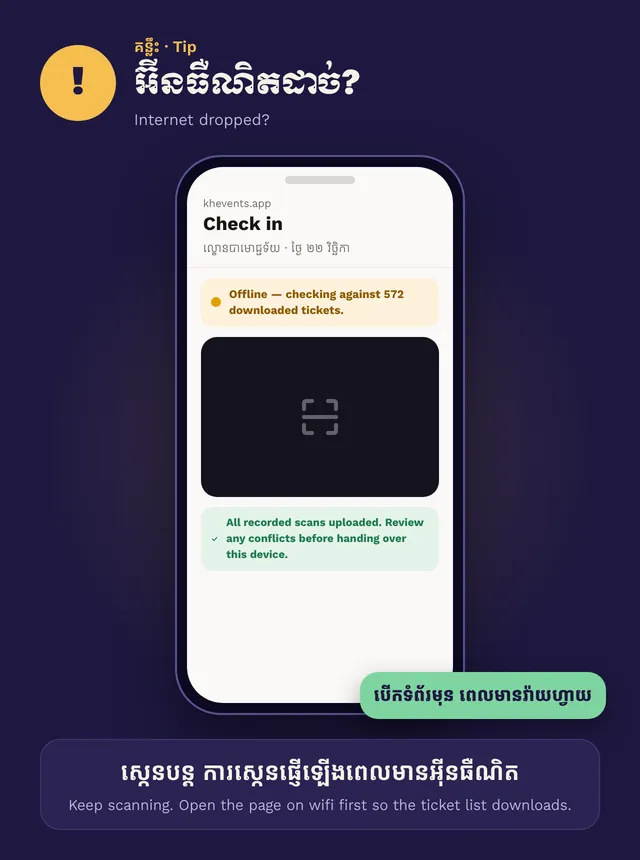
Open Check-in and pick the event. If it has several dates, choose today’s date at the top. Tap Start scanning and allow the camera. Open it on wifi before the doors open, so the ticket list downloads.
Scan
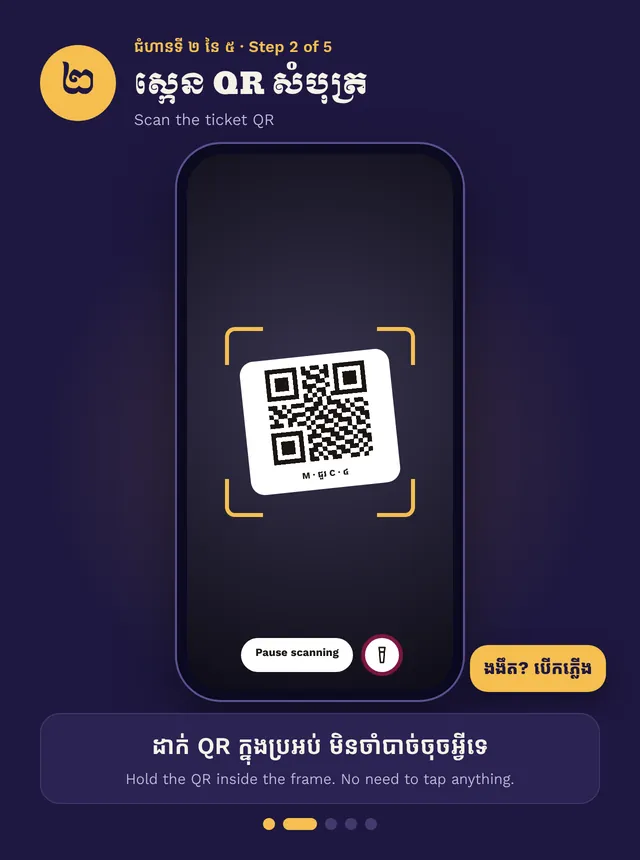
Hold the QR inside the frame. There is nothing to tap.
- Green, Valid: let them in. The screen shows the seat.
- Amber, already checked in: stop. It shows when it was first used.
- Red, wrong date or not valid: stop. Send them to the counter or a manager.
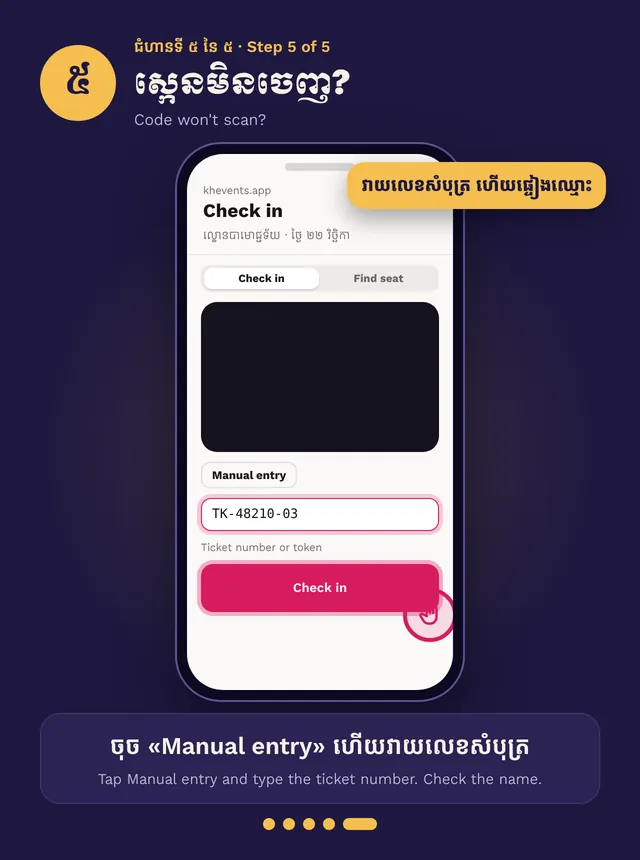
Code won’t scan? Tap Manual entry, type the ticket number, and check the name.
If the event asks for Khmer ID, the scanner reminds you to check it.
Weak internet
Keep scanning. The scanner checks tickets against the list it downloaded. Scans sync when the connection is back. Don’t reload the page while offline.
A USB barcode scanner also works on the Check-in page.